|
|
 Home |
PS_MYANMAR |
Please follow these steps:

Choose the Languages tab in the middle.
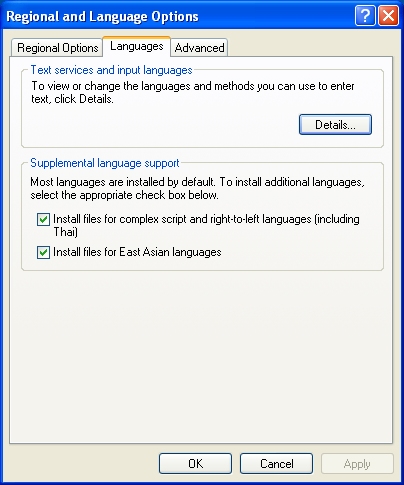
Click the Details button to launch the Text Services and Input Languages dialog.
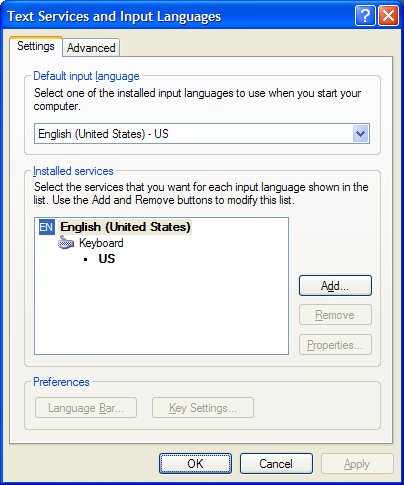
(You will see a 'tree' listing of your input languages, where each main node is a language/region pairing and each branch underneath is a specific input method.)
Click the Add button to add an input language. This will launch the Add Input Language dialog.
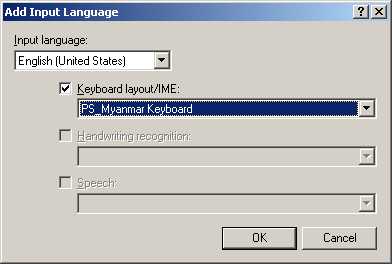
Select the English (United States) in the Input language drop-down list and then select PS_Myanmar Keyboard layout, then click OK.
(You will be returned to the Text Services and Input Languages dialog, and you will be able to see PS_Myanmar Keyboard layout added to the tree).
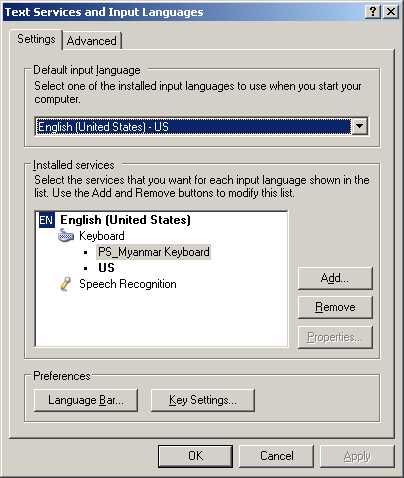
Click OK in the Text Services and Input Languages dialog.
(You can see the PS_Myanmar keyboard in the Language Bar.)
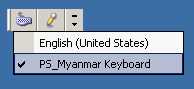
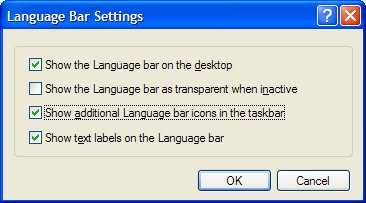
N.B: If you do not see the Language Bar on the desktop, you can click the "Language Bar..." button in the lower left hand corner of the dialog and it will bring up the "Language Bar Settings" dialog. Make sure the first CheckBox controls are checked, and click OK.